Quick answer
Do not start by resetting your Notes password. A reset protects notes you lock in the future; it does not unlock notes protected by an older custom password. First try Face ID, Touch ID, the device passcode if that was the selected method, and any older custom password suggested by the hint. Delete only when you no longer need the locked content.
Choose the outcome you actually need
Delete the note
Remove an unwanted locked note without pretending the content has been recovered.
02Recover access
Check biometrics, device passcode, old passwords, account, and version boundaries.
03Undo a deletion
Use Recently Deleted or the relevant account bin before the recovery window closes.
04Remove the lock
Understand why removing protection requires authorized access but deletion is different.
Critical distinction
Deletion is not password recovery
Deleting from the note list removes the note from its current location. It does not reveal, export, or decrypt its contents. If the note matters, pause and work through the recovery path first.
Apple currently supports two locking models: device passcode or a separate custom Notes password. The available recovery route depends on which model protected the note.
What do you still have?
Choose the closest match.
Safe recovery order
- Confirm the account and note.Look in iCloud, On My iPhone, and any enabled email account. Search can only see the title of a locked note.
- Try authorized unlock methods.Use Face ID, Touch ID, the device passcode, or the original custom Notes password.
- Preserve access immediately.If the note opens, copy the information you need and change or remove the lock while access is available.
- Delete only after deciding the content is expendable.The note normally moves to Recently Deleted, where it can remain recoverable for up to 30 days.
What Apple’s current documentation makes clear
Apple states that it cannot restore access to notes protected by a forgotten custom password when Face ID or Touch ID is also unavailable. It also states that resetting the custom Notes password does not unlock previously locked notes. Review Apple’s current locked-notes guidance before making an irreversible choice.
One-minute safety check
0 of 5 checked
Visual context
Recognize the screens and access choices
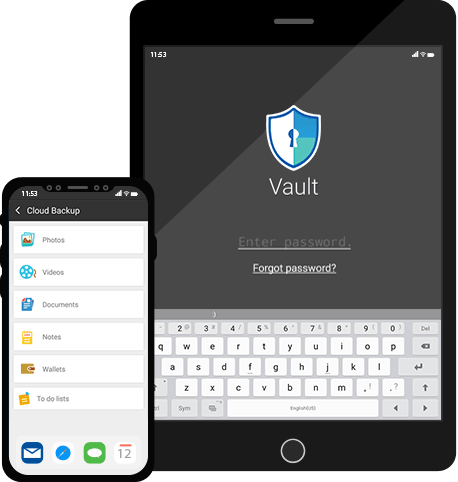
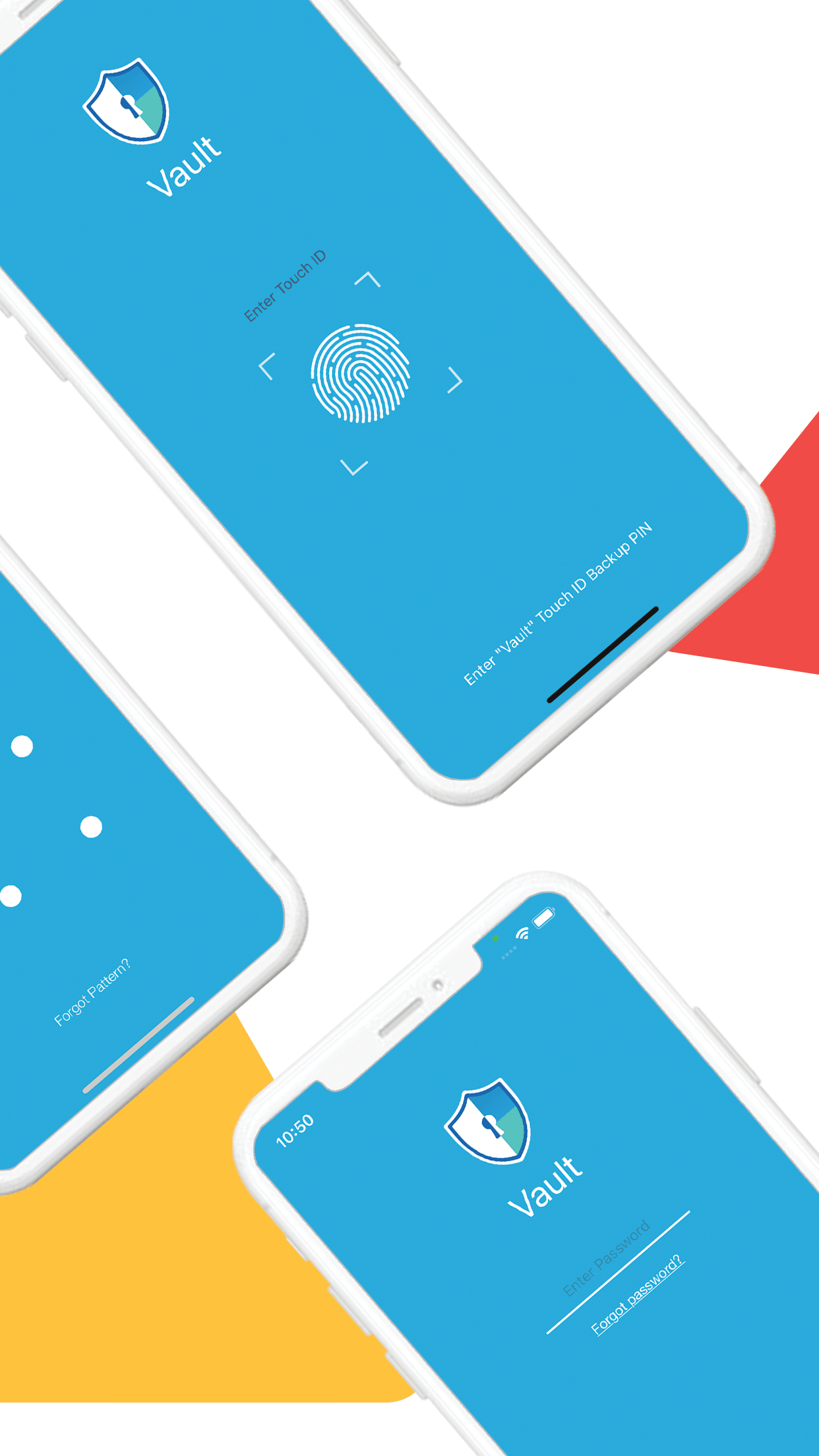
These reference visuals help distinguish authentication, storage, and recovery concepts. Your exact interface may vary by app and system version.
Verified references